
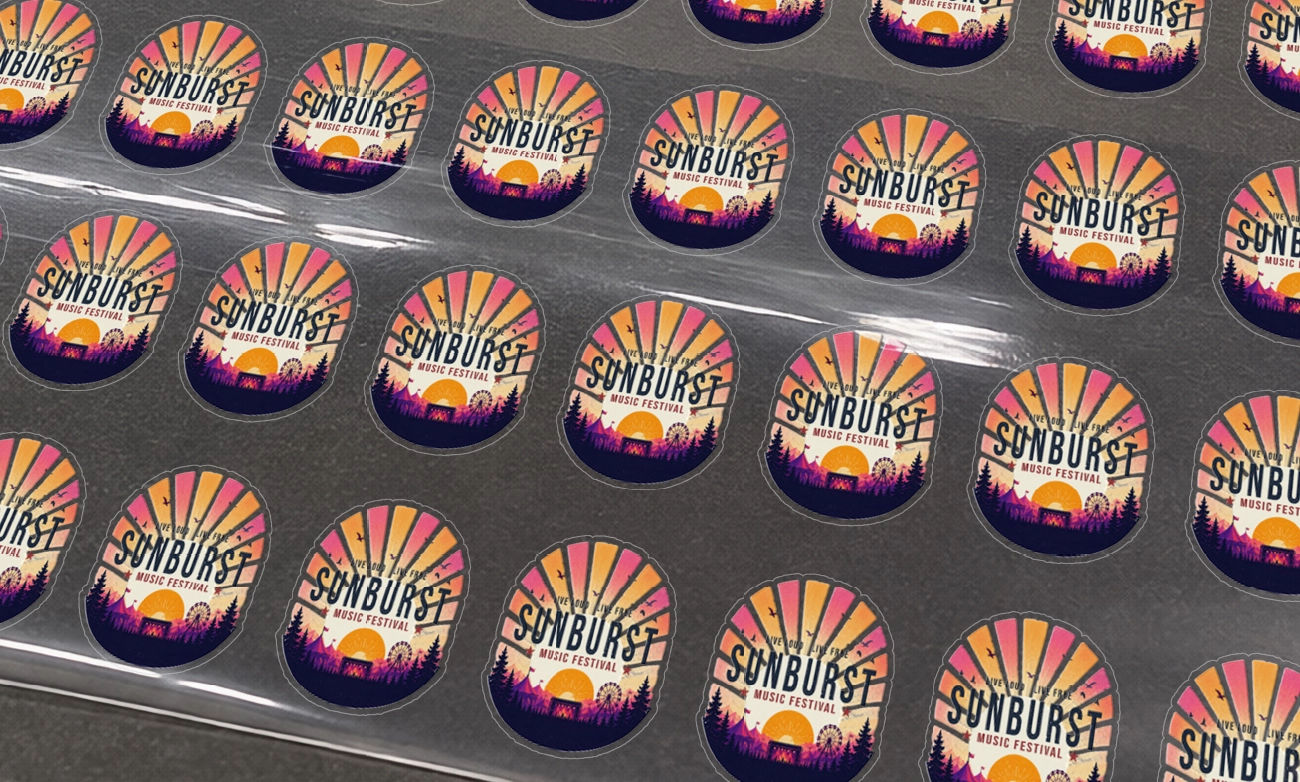
Reviewed November 2026 by the RGB UK technical team.
Quick answer
Draw your cut path as a vector, apply a spot colour named exactly CutContour to its stroke (not its fill), then save as PDF or EPS and add it to VersaWorks. The name is case sensitive. In Illustrator, use the Roland VersaWorks swatch library. In CorelDRAW, create a custom spot colour called CutContour and apply it to the outline.
Print and cut is the reason most people buy a Roland VG4, VG3, BN2 or MG2, and the CutContour line is where most first jobs go wrong. Roland’s VersaWorks reads one specific spot colour as an instruction to cut. Get the name and type right and the rest is straightforward.
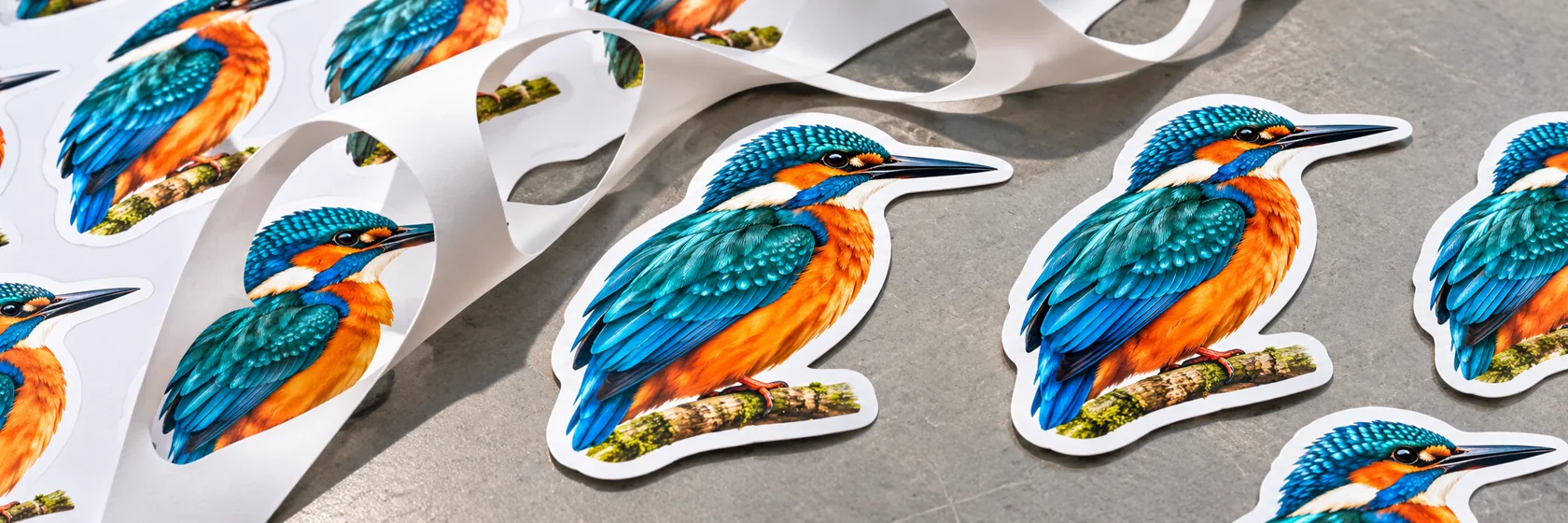
The four rules for a CutContour line
| Rule | Correct | Common mistake |
|---|---|---|
| Name | CutContour, exactly | cutcontour, Cut Contour, CutContour1, CUTCONTOUR |
| Colour type | Spot colour | Process (CMYK) colour with the same name |
| Applied to | Stroke (outline) | Fill |
| Object | A plain vector path | Live text, live effects, clipping masks, embedded images |
Setting up CutContour in Adobe Illustrator
- Draw or create your cut path. For a sticker outline, use Object > Path > Offset Path on the artwork, then unite the result into one clean shape.
- Open the Roland VersaWorks swatch library. Roland supplies a file called Roland VersaWorks.ai that you copy into Illustrator’s swatch library folder. It then appears under Swatch Libraries in the Swatches panel.
- Select only the cut path, make sure the Stroke is active in the toolbox, and click the CutContour swatch. Set the fill to none.
- Check the Swatches panel. The swatch should show the spot colour icon. If it has turned into a process colour, the cut will be ignored.
- Outline any text that forms part of the cut, and expand any effects on the cut path.
- Save as PDF or EPS and add the file to the VersaWorks job queue.
No swatch library to hand? Create a new swatch, name it CutContour, set the colour type to Spot Colour, and pick any colour you like (a bright magenta is easy to see). VersaWorks reads the name, not the colour value.
Setting up CutContour in CorelDRAW
- Open the Palette Editor and add a new colour under custom spot colours.
- Name it CutContour, exactly.
- Select the cut path, open the Outline Pen, choose CutContour from the palette and click OK. Remove any fill.
- Export as PDF or EPS and add it to VersaWorks.
In VersaWorks
When the file is in the queue, the cut lines show as a separate path in the preview. Open the job settings and choose Print and Cut as the cut mode. Run a small test first on any new media, and check the cutting force and blade offset suit the vinyl. If you are new to VersaWorks 7, our VersaWorks 7 guide covers the interface changes.
Printing, laminating, then cutting
For stickers and decals that need laminating, print with crop marks rather than printing and cutting in one go:
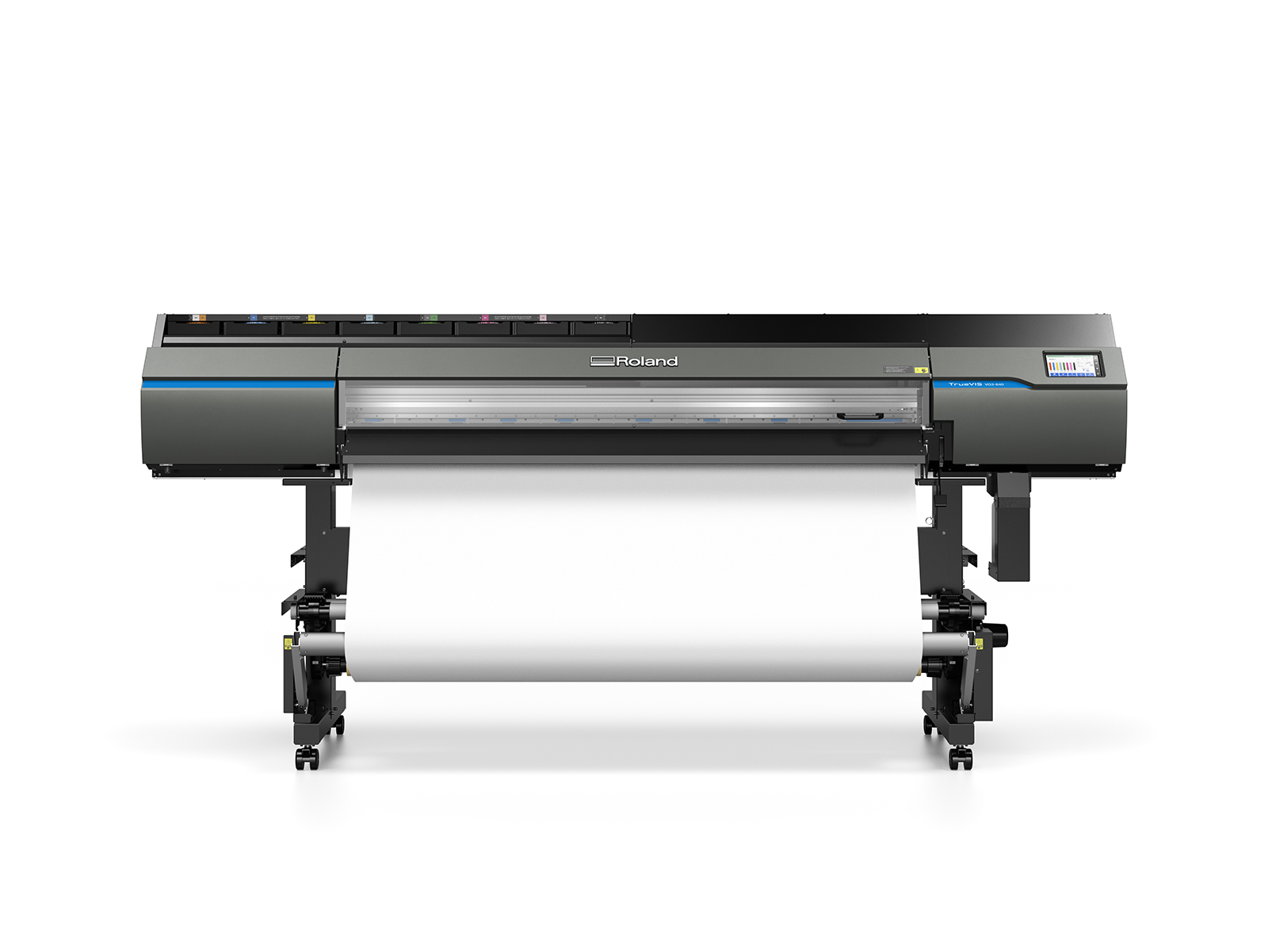
- Print the job with crop marks.
- Leave it to outgas. We recommend 24 hours for eco solvent (see our outgassing guide).
- Laminate it.
- Reload it, and send the cut job using the crop marks so the printer reads them and lines the cut up with the print.
Roland notes that laminating can slightly change the media, so if cuts start to drift, rerun the crop cut position adjustment on the printer.
If cuts are misaligned
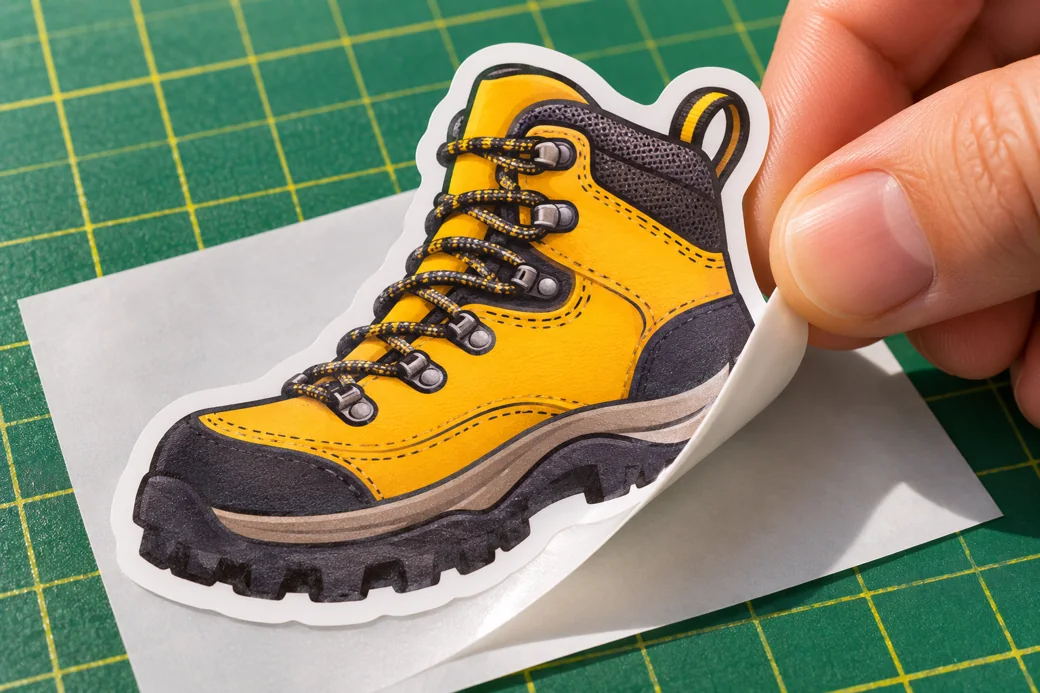
- Run the printer’s print and cut alignment test, which Roland provides on all print and cut models.
- Make sure the pinch rollers are on the grit rollers and the media is loaded straight.
- Long jobs on stretchy media can drift. Split very long runs or use crop marks.
- Check the blade for wear and the holder for vinyl debris. Replacement Roland blades and holders are in stock.
Frequently Asked Questions
What is the cut line colour called in Roland VersaWorks?
It must be a spot colour named CutContour, spelt exactly like that with a capital C at the start of each word. VersaWorks reads the name, not the colour value, and the name is case sensitive.
Why is VersaWorks not cutting my contour line?
The usual reasons are that the swatch is not named exactly CutContour, the colour has been applied as a fill instead of a stroke, the swatch has been converted from a spot colour to a process colour, or the line is part of an effect, clipping mask or live text that has not been expanded to a plain path.
Does the CutContour line need to be a particular thickness?
No. Roland does not specify a line weight. VersaWorks follows the centre of the path, so the stroke weight does not change where the blade cuts. A thin stroke such as 0.25pt keeps it easy to see on screen.
Can I laminate before contour cutting on a Roland?
Yes. Print with crop marks, take the print off, let it outgas and laminate it, then reload it and cut using the crop marks. Roland’s manual covers this workflow, and notes that laminating can change the media slightly, so check the crop cut position adjustment if cuts drift.
Which Roland printers can print and cut?
Print and cut models include the TrueVIS VG4, VG3 and SG3 eco solvent ranges, the XG-640, the desktop BN2, and the MG2, MG and LG UV ranges. The XP-640 and ER-641 are print only.
Related Roland guides
- Roland printer questions answered
- Roland VG3 vs VG4: what is the difference?
- Can a desktop print cutter pay for itself?
- Roland printers and printer cutters
Sources
Setting up a print and cut workflow?
We can help with VersaWorks setup, media presets and choosing the right Roland printer cutter for your work.