
Printing mistakes don’t show up on test sheets. They appear on the expensive roll, the last sheet of fine art paper, or right before a client deadline. The good news is that with Canon imagePROGRAF PRO series printers, most “printer problems” are actually workflow mismatches: the wrong media setting, a profile oversight, or a maintenance step skipped under pressure.
This guide is tuned for real Canon PRO usage on models like the PRO-2600, PRO-4600 and PRO-6600, where colour accuracy and repeatability matter more than speed. If you’re specifically researching the PRO-2600, start here: Canon imagePROGRAF PRO-2600.

A consistent studio workflow is what makes Canon PRO series output feel effortless.
Fast diagnosis (most common causes)
- Profile doesn’t match the paper
- Media type set incorrectly in the driver
- Nozzle issue starting to show as banding
- Scaling or borderless settings drifting
What “good” looks like on PRO printers
- Saved presets per paper type
- Soft proofing before money prints
- Light, regular nozzle checks
- Calibrated monitor brightness
1) Start with the file, not the printer
Canon imagePROGRAF PRO printers are extremely literal. If something is ambiguous in the file, the output will expose it. Before you touch a cleaning cycle, rule out the predictable file-level traps.
Common file mistakes
- Low-res images scaled too large
- RGB sent without intent defined
- Fonts not embedded correctly
- Document size drifting from paper size
PRO series best practice
- Use repeatable export presets
- Confirm resolution at final size
- Be explicit with colour handling
- Avoid last-minute driver scaling
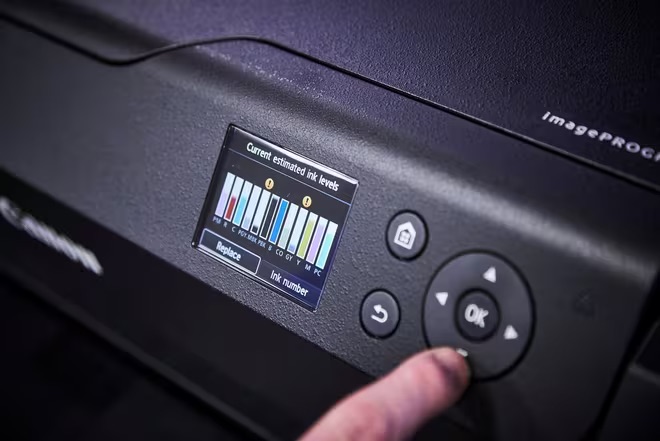
A quick settings check prevents a huge percentage of avoidable reprints.
If you’re running the PRO-2600 day-to-day, this is a solid reference for real questions that come up: Canon imagePROGRAF PRO-2600 FAQ.
2) Colour doesn’t match the screen (and how to fix it)
The “darker than my monitor” problem is normal if your display is too bright or you’re not soft proofing properly. The Canon PRO series will faithfully print what you ask for, but you need to show it the correct paper response.
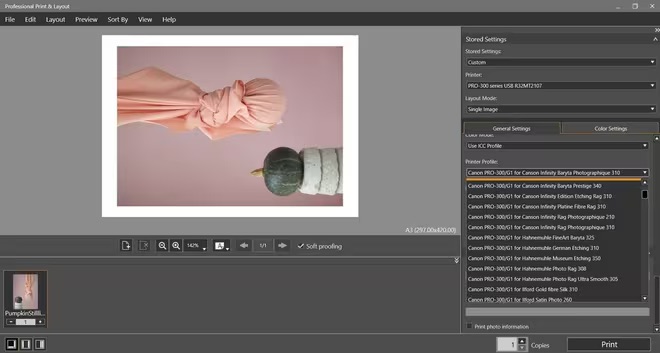
Usually the cause
- Monitor brightness set too high
- Wrong ICC profile for the paper
- Soft proofing skipped
Canon PRO fix
- Calibrate and lower display luminance
- Use the exact media profile
- Soft proof every “money” print
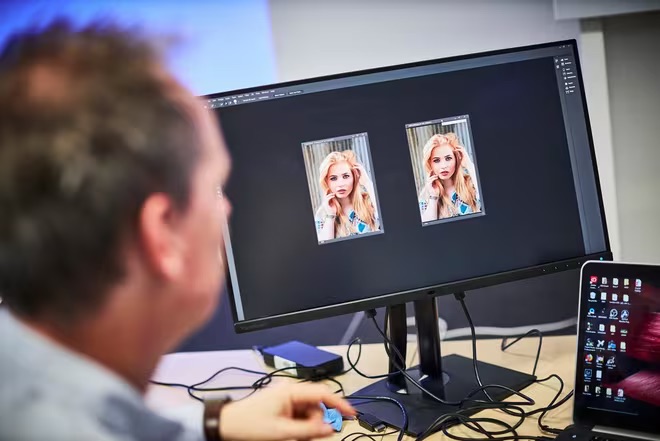
Soft proofing and correct ICC profiles are what make Canon PRO printers feel “predictable”.
3) Media settings: the silent killer of “good” prints
On Canon imagePROGRAF PRO printers, media type controls ink limits, drying behaviour and how blacks sit on the surface. If the media setting is wrong, you’ll often see dull contrast, muddy shadows, weak blacks or bronzing.
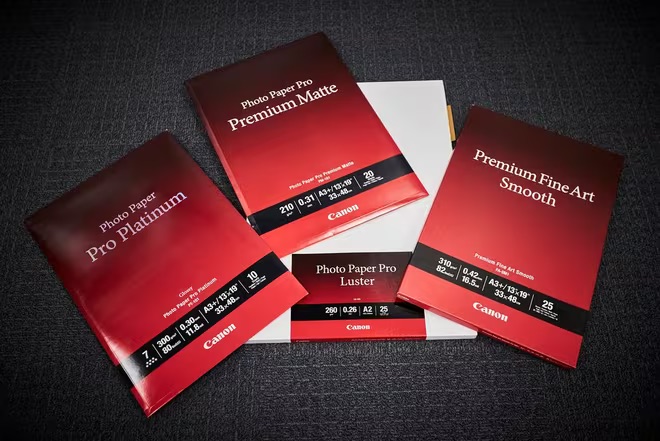
Match the driver
Confirm the media type in the driver matches what’s physically loaded.
Use presets
Create named presets for matte, baryta, gloss and textured fine art.
Let it dry
Dense blacks need time before stacking, trimming or mounting.
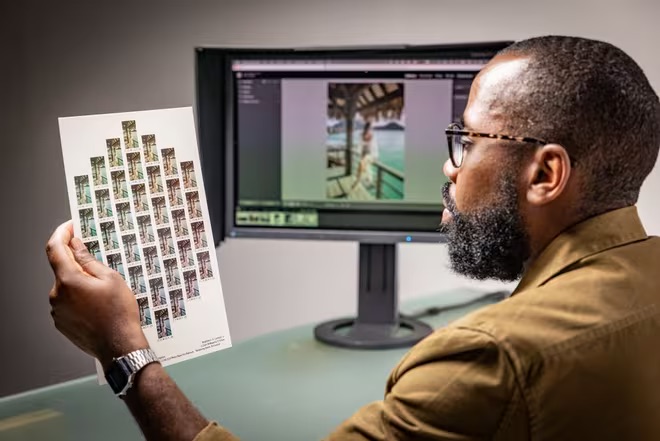
If you’re troubleshooting unpredictable output, also confirm you’re using the correct inks for your model: Canon PRO-2600 ink.
4) Banding and streaks: stop wasting prints
Banding is usually a maintenance signal. It can be caused by partial nozzle issues, long idle periods, or a head that needs attention. The mistake is printing “just one more” and hoping it clears up mid-job.
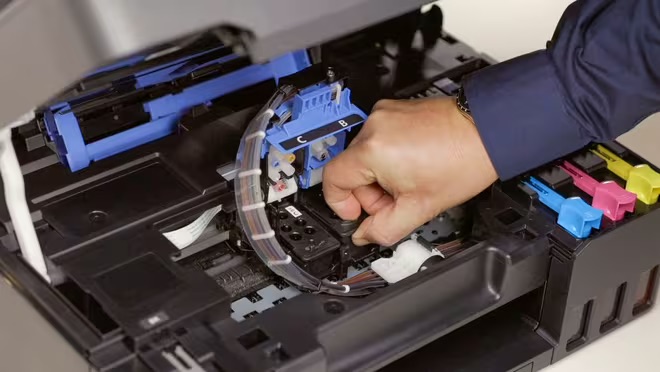
Banding quick checklist
- Run a nozzle check before a full print
- If it shows gaps, do the lightest clean first
- Re-test before committing to media
- Avoid repeated deep cleans unless necessary
If you run production output and want proactive cover, monitoring and support, you can also look at: RGBuk eService.
5) The workflow that makes Canon PRO printing feel easy
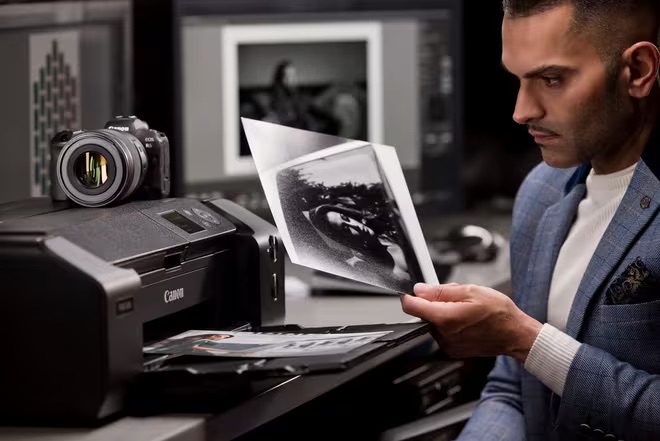
The Canon imagePROGRAF PRO series is built for predictable, saleable output. The goal isn’t perfection, it’s repeatability. When you save presets per paper, soft proof your key jobs and keep maintenance calm and regular, most printing mistakes disappear.
If you want deeper reading that’s still practical (not marketing), these two are useful: PRO-2600 for photography and fine art printing and Canon PRO-2600 review. If you need a safety net while you build confidence, RGBuk also offers SupportPRINT.